Your account is free and takes about a minute. It keeps your reward points, purchases, repairs and classes in one private place. You never need an account to check out.
On our website, tap Rewards, the star near the top right of every page. You can also scroll to the bottom of any page and choose My Countryside Quilts Account under My Account.
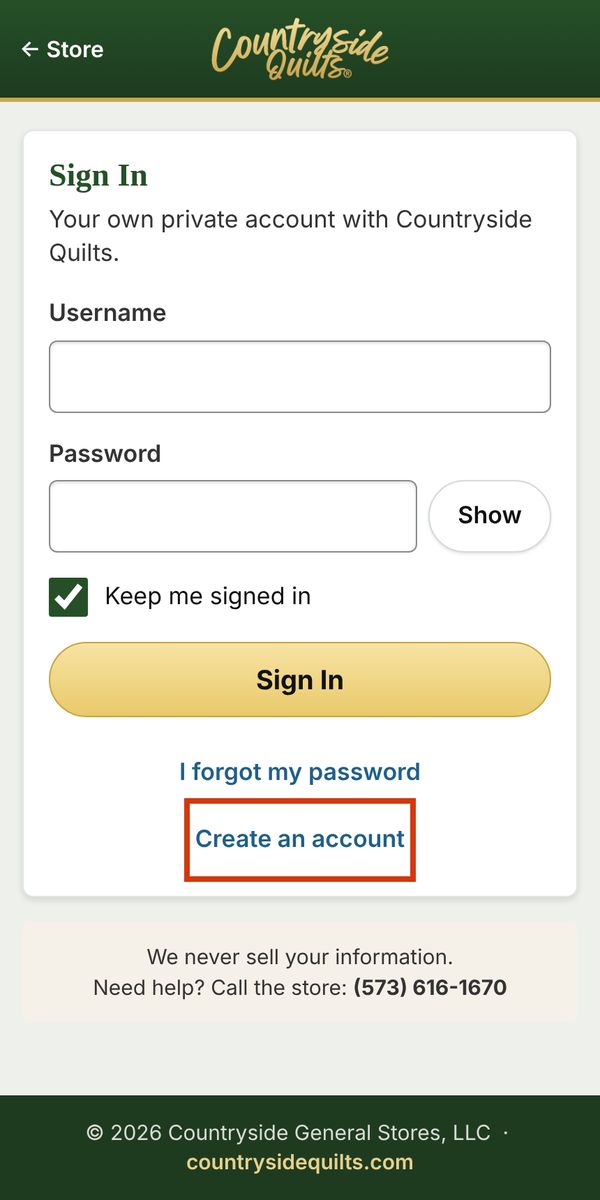
On the Sign In screen, tap Create an account.
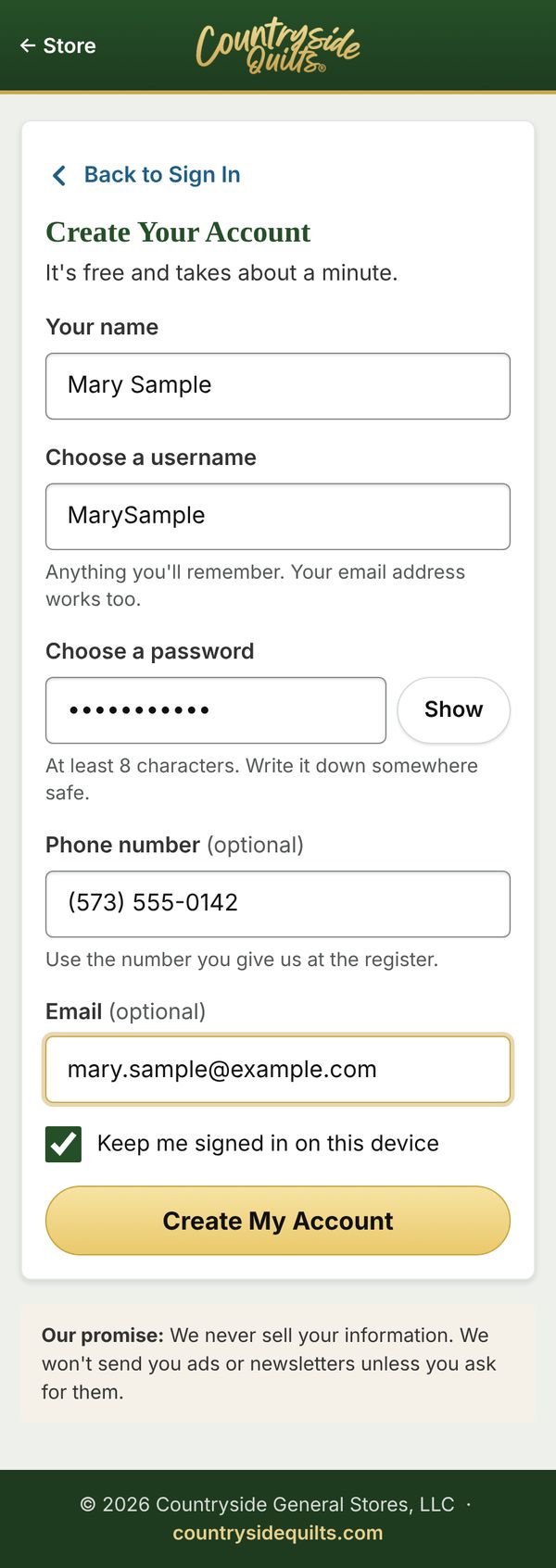
Fill in the boxes:
Your name.
Choose a username. Anything you'll remember. Your email address works too.
Choose a password. At least 8 characters. Write it down somewhere safe.
Phone number (optional). Use the same number you give us at the register, so we can connect your store purchases later.
Email (optional, but it fills in your account for you; see step 6).
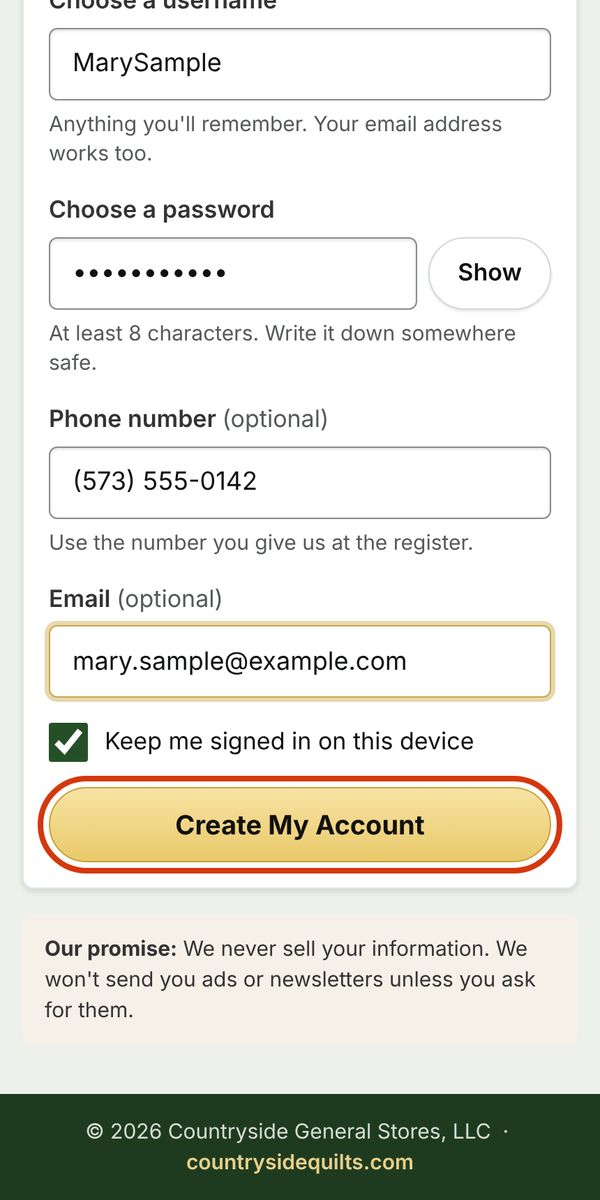
Tap Create My Account.
You're in. Your account opens right away.
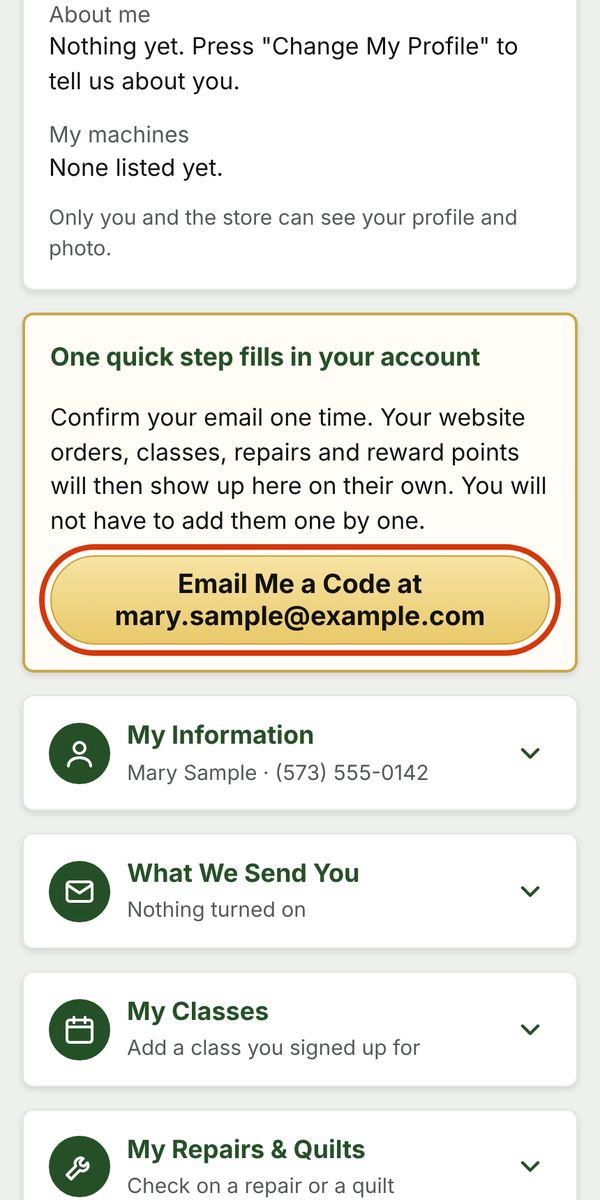
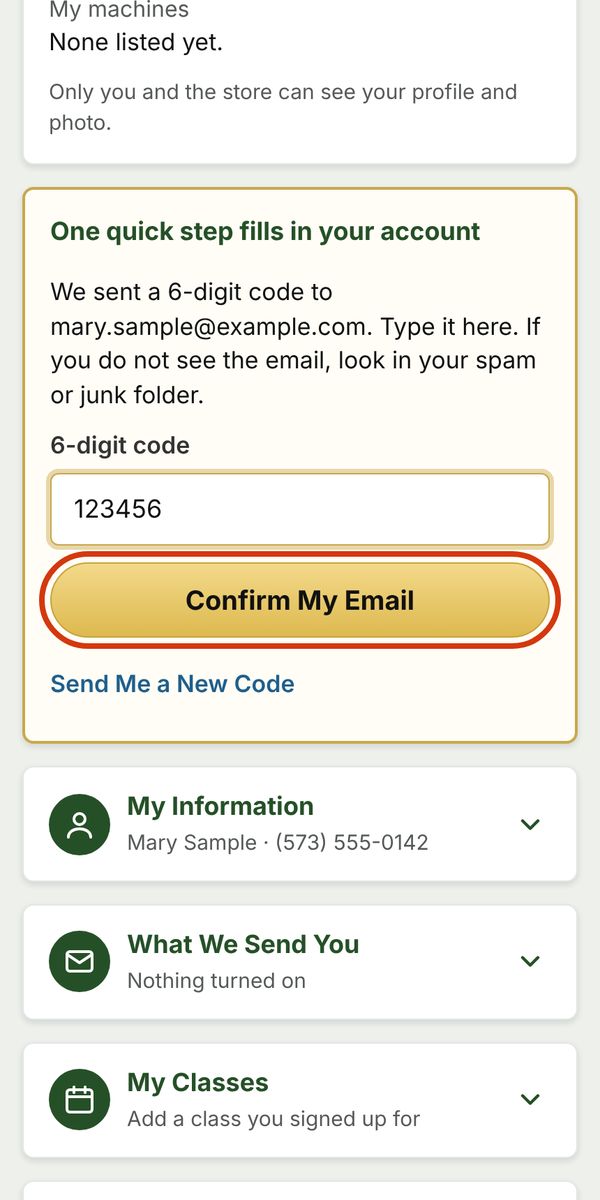
If you gave an email, you'll see a box at the top: One quick step fills in your account. Tap Email Me a Code, then type the 6-digit code from the email. Your website orders, classes, repairs and reward points then show up on their own. More about this step.
Already earn points at our register? After you make your account, tell us at the counter on your next visit and we'll connect them. Here's how.
We never sell your information, and we won't send you ads or newsletters unless you ask for them.
Confirm your email (one quick step)
Confirming your email one time fills in your account by itself: your website orders, classes, repairs and reward points. You won't have to add them one by one.
Sign in to My Countryside Quilts Account. At the top you'll see One quick step fills in your account. Tap Email Me a Code.
Open the email we send you. If you don't see it in a minute or two, look in your spam or junk folder.
Type the 6-digit code into the box and tap Confirm My Email.
No box at the top? Then your email is already confirmed. No email address on file? Add it under My Information and the box will appear. No email at all? Ask us at the counter and we'll connect your account with your phone number.
Didn't get a code? Tap Send Me a New Code.
Using My Countryside Quilts Account
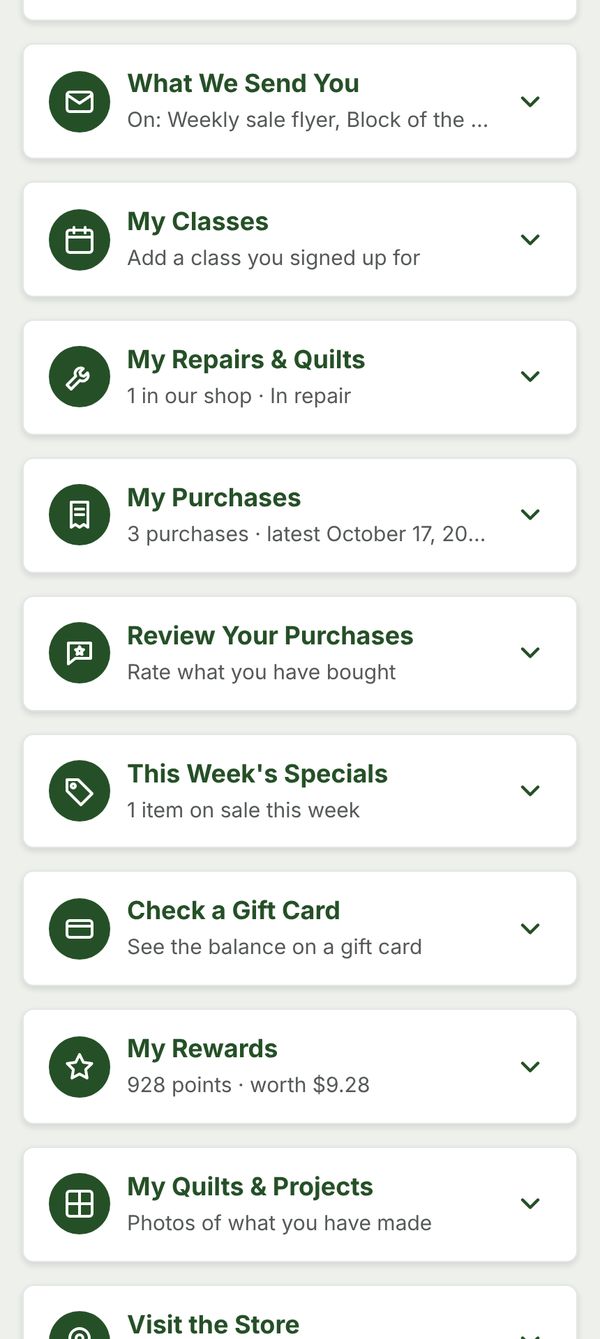
Your account page is a list of boxes. Each box shows its name and a one-line preview. Tap a box to open it, and tap it again to close it. Here is what each one is for.
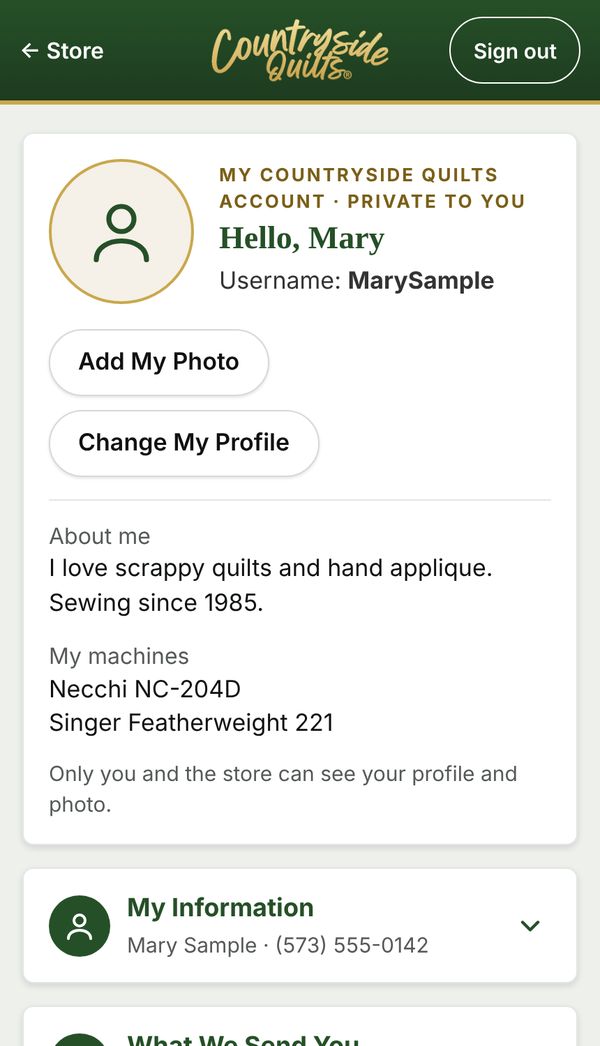
The top of your account: your name, your username, and your profile.
Your photo and profile
At the top. Add My Photo puts a picture on your account. Change My Profile lets you tell us what you like to make and which machines you own, which helps us with repairs and parts. Only you and the store can see it.
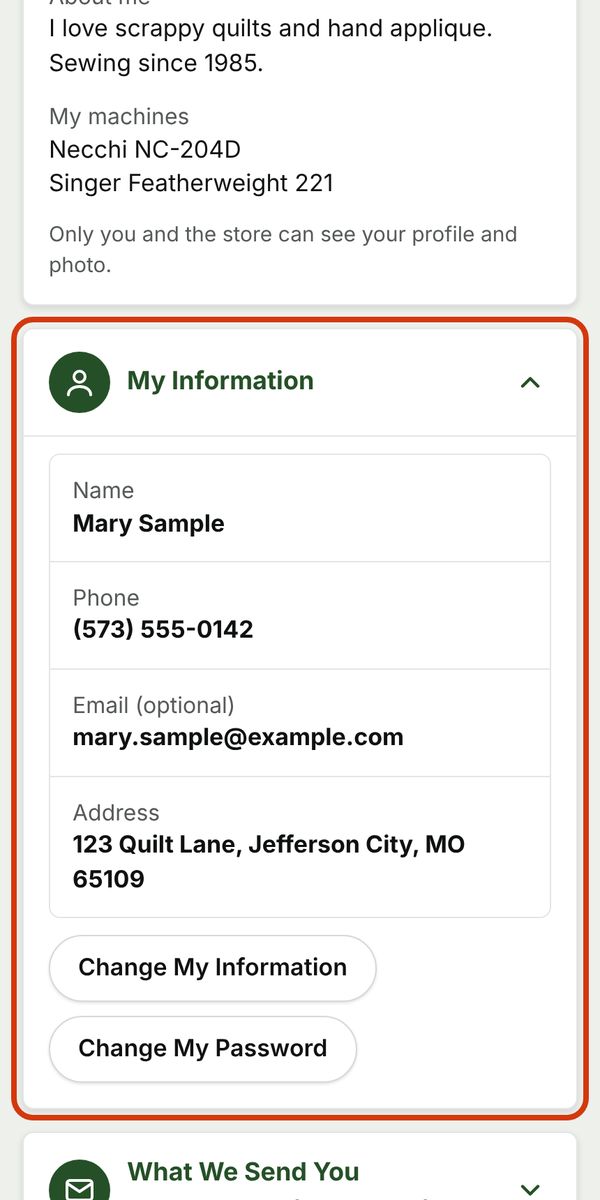
My Information
Your name, phone, email and address. Change My Information to update them, or Change My Password.
What We Send You
The emails you've asked for: the weekly sale flyer, the newsletter and Block of the Month news. Everything is off unless you turn it on. We'll still contact you about your own orders and repairs.
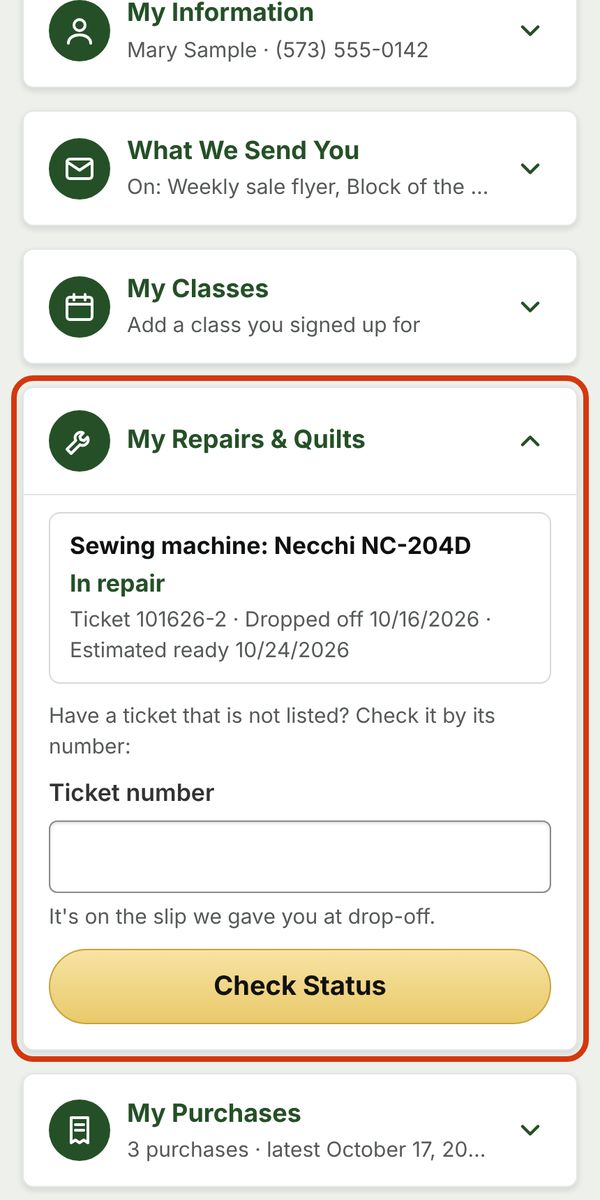
Your sewing machine repairs and quilts with us, and where each one stands. More.
My Purchases
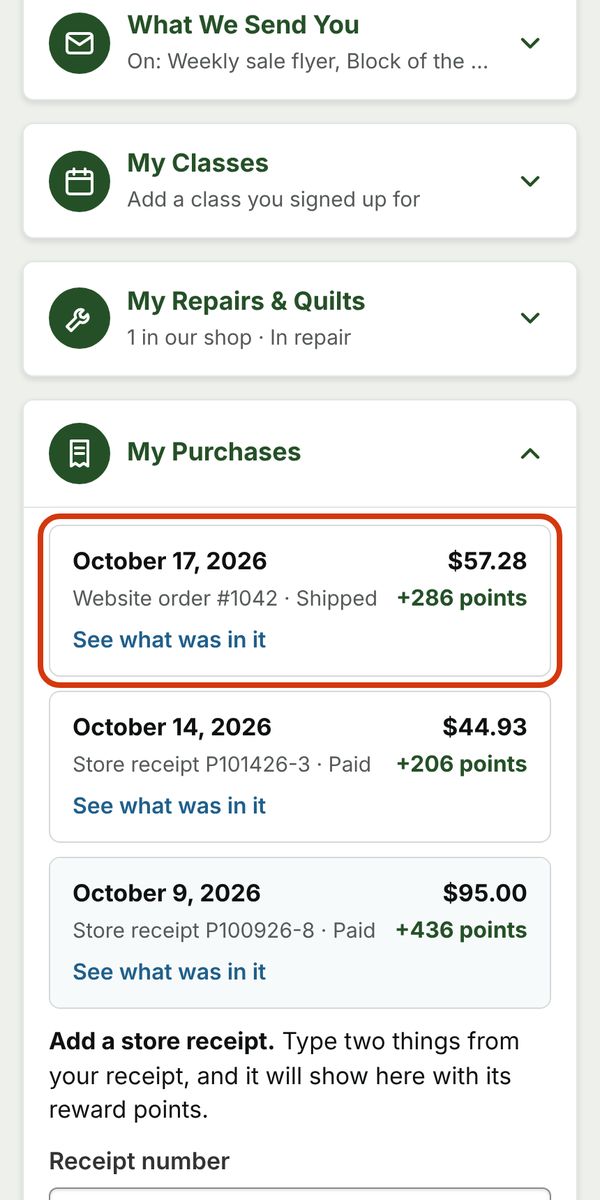
Your website orders and store receipts, with the reward points each one earned. Tap See what was in it on any purchase. You can also add a store receipt or a website order here.
What's on sale this week. Tap an item to see it on our website.
Check a Gift Card
Type the number from the back of a gift card to see its balance.
My Rewards
Your reward points, what they're worth, and every point you've earned or used. This is also where you use your points on the website.
My Quilts & Projects
A photo album of things you've made. Only you and the store can see it.
Visit the Store
Our address, hours, phone number and directions.
Concierge
The gold button near the bottom. It opens our Customer Service page: answers, requests, Ms. Murphy and chat with us.
Back to the Store and Sign out
At the very top. Store takes you back to shopping. Sign out when you're done on a shared computer.
The boxes, closed. Tap any one to open it.
Sign in, or if you forgot your password
To sign in
Tap Rewards, the star near the top right of our website (or My Countryside Quilts Account at the bottom of any page).
Type your username and password, then tap Sign In. Leave Keep me signed in checked on your own device so you don't have to sign in every time.
If you forgot your password
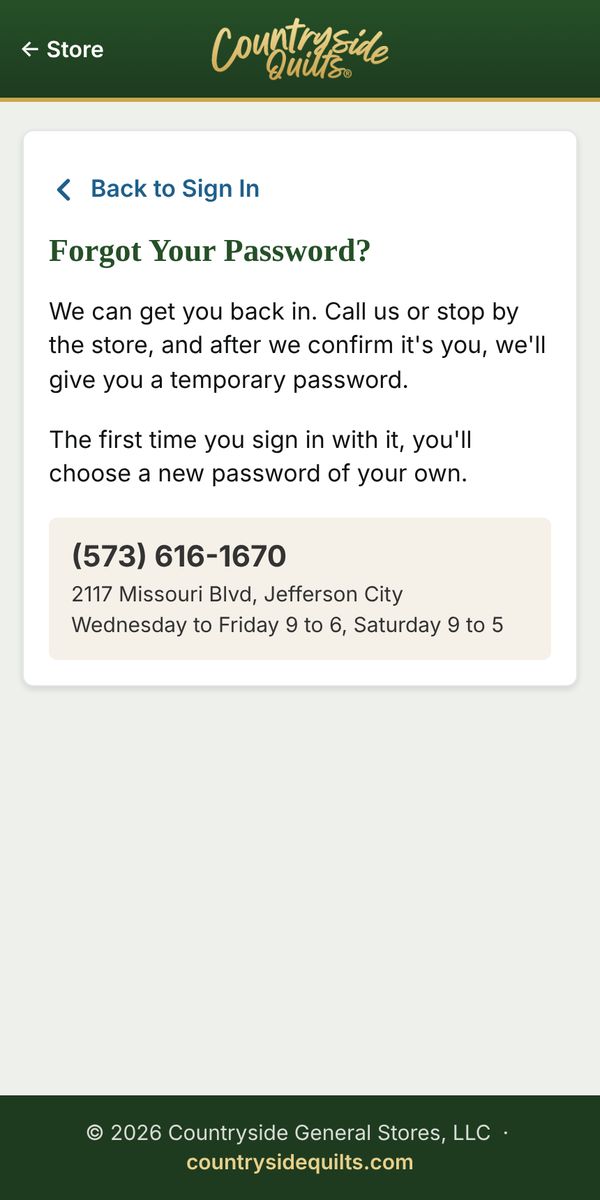
For your safety, passwords are reset by a person, not by email.
On the Sign In screen, tap I forgot my password.
Call us at (573) 616-1670 or stop by the store. After we confirm it's you, we'll give you a temporary password.
Sign in with it. The first time, you'll choose a new password of your own.
Forgot your username? We can look it up for you the same way.
Change your information, password or emails
Sign in and tap the My Information box to open it.
Tap Change My Information to update your name, phone, email or address, then Save.
Tap Change My Password to choose a new password. You'll need your current one.
Emails: open What We Send You and turn the weekly flyer, newsletter or Block of the Month news on or off.
Photo and profile: at the top of your account, use Add My Photo or Change My Profile.
Changed your phone number? Update it here. If you earn points at the register, let us know at the counter too, so your store purchases keep landing in your account.
How reward points work
Earn points on everything you buy, in our store and on our website, including sewing machine repairs and service.
Save: your points turn into money off what you buy next.
Use them at our register or on our website.
Points go to your free My Countryside Quilts Account. Every product page on our website shows how many points it earns, right under the Add to Your Quilt Basket button.
To see your balance, open My Rewards in your account. It shows your points, what they're worth in dollars, how many points you earn for each dollar, and every point you've earned or used.
In the store, you don't even need an online account: give your name and phone number at the register and your points are saved. When you make an online account later, we'll connect them.
Points from website orders show up in your account once you confirm your email, including orders you placed before you had an account.
Use your reward points on the website
You set aside a dollar amount in your account, then shop like always. It comes off at checkout by itself. There is no code to type.
Sign in and open My Rewards.
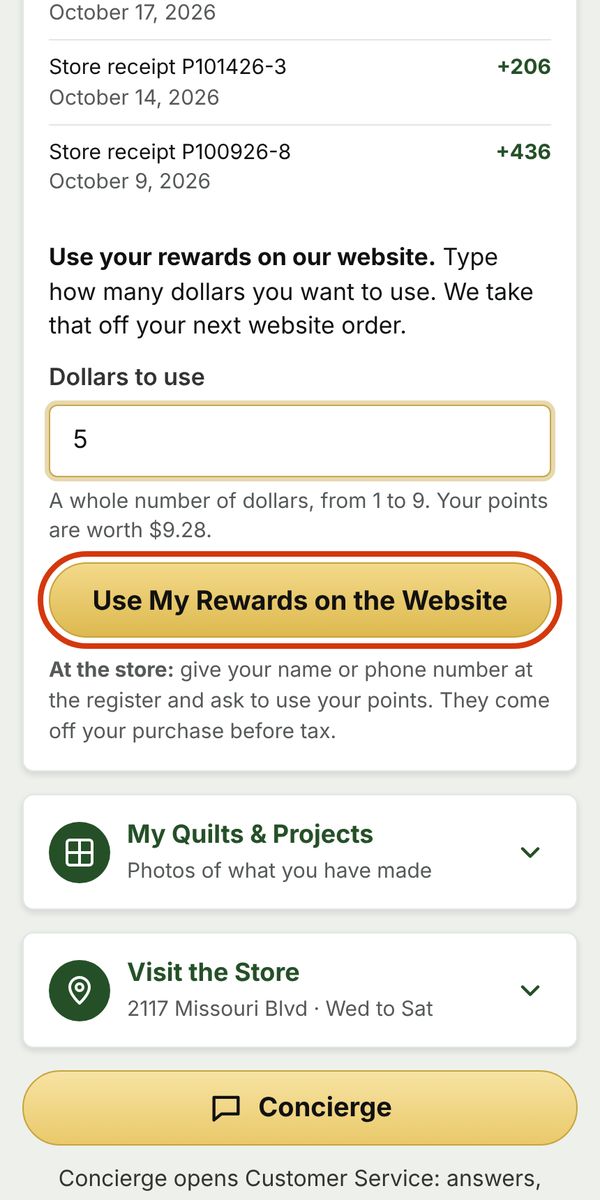
Under Dollars to use, type a whole number of dollars, like 5. The box tells you the most you can use.
Tap Use My Rewards on the Website.
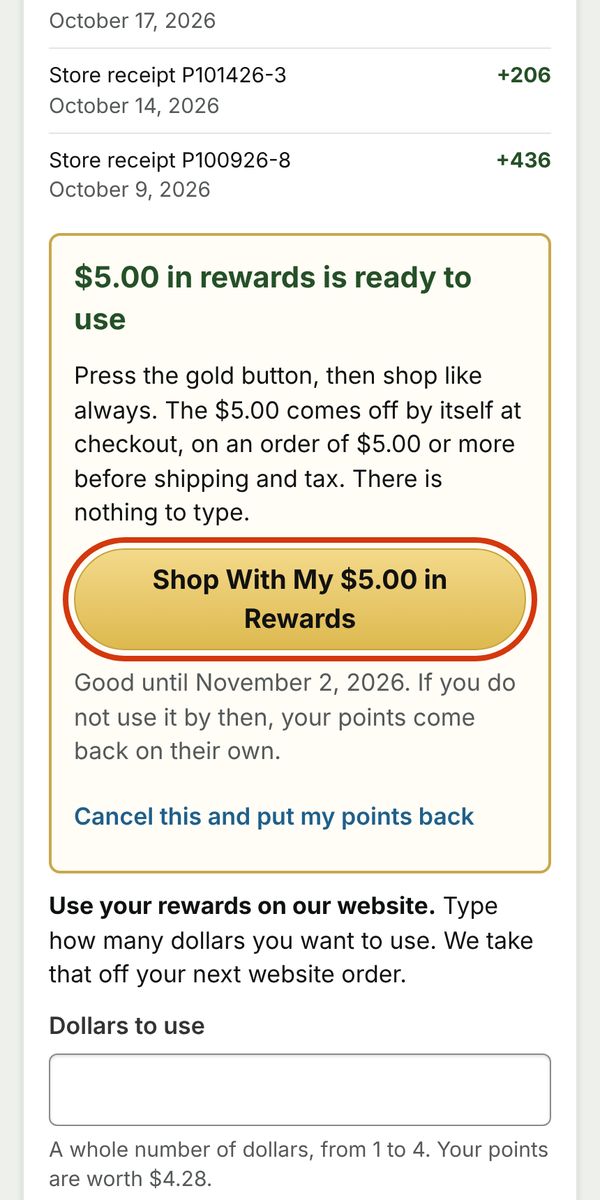
Tap the gold button, Shop With My $5.00 in Rewards (it shows your amount).
Shop and check out like always. Your rewards come off by themselves at checkout, on an order of at least that amount before shipping and tax.
Your rewards are good until the date shown under the gold button. If you don't use them by then, your points come back on their own.
Changed your mind? Tap Cancel this and put my points back. Your points return in a few minutes.
You can have up to three set aside at once.
Use your reward points in the store
At the register, give your name or phone number and ask to use your points.
We'll confirm the name on the account with you. If we don't know you yet, we may ask to see an ID. This keeps anyone else from using your points.
Your points come off your purchase before tax.
You earn points on the same purchase too.
Connect your store points to your online account
If you've been earning points at our register with your phone number, you can see them in your online account too. It takes one visit.
Next time you're in the store, tell us at the counter that you made an online account.
We'll confirm it's you and connect the two. Your store points, receipts, repairs and classes move into your online account.
From then on, everything goes to one place: what you buy at the register under your phone number, and what you order online once you've confirmed your email.
Why does this need a visit? A phone number typed on a website could be anyone's. We connect accounts in person so nobody else can claim your points.
Can't get in soon? Call us at (573) 616-1670 and we'll help.
Add a store receipt
Shopped in the store without giving your phone number? Add the receipt to your account and it will show with its reward points.
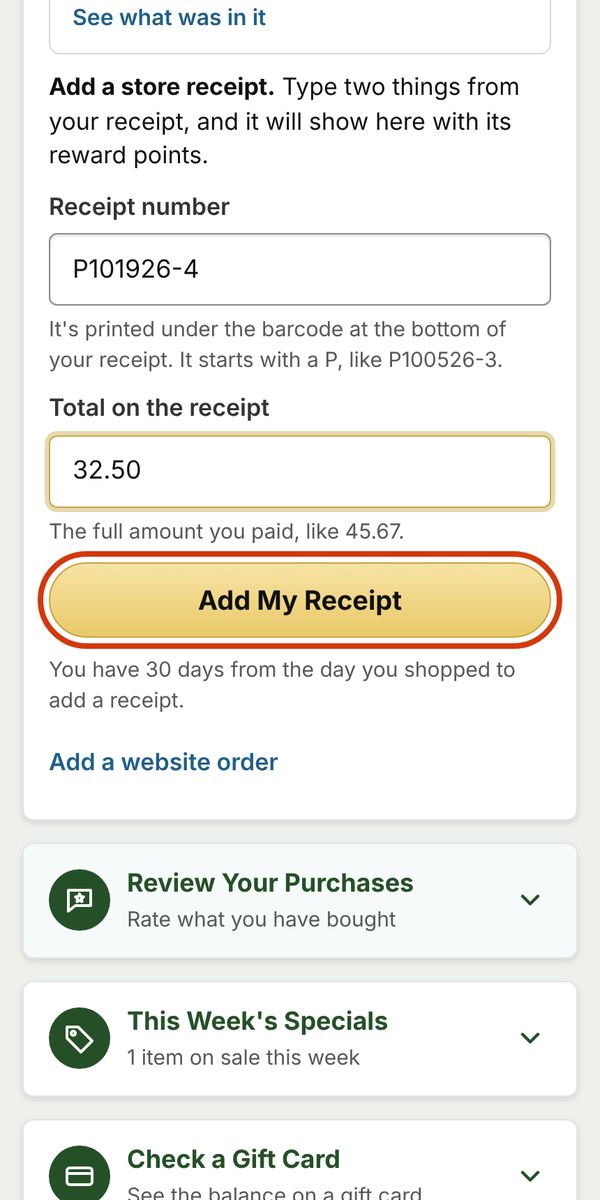
Sign in and open My Purchases. Tap Add a store receipt.
Type the Receipt number. It's printed under the barcode at the bottom of your receipt and starts with a P, like P100526-3.
Type the Total on the receipt, the full amount you paid, like 45.67.
Tap Add My Receipt.
You have 30 days from the day you shopped to add a receipt.
Add a website order
Once you confirm your email, your website orders show up on their own. If one is missing, for example because you used a different email, add it by hand.
Sign in and open My Purchases. Tap Add a website order.
Type the Order number from your order confirmation email, and the email you used on that order.
Tap Add My Order. It shows in your purchases with its reward points.
Find what you're looking for
Search: type in the search bar at the top of any page. Short searches work best: a brand (like Aurifil), a product (like batting), or both.
Browse: use the menu (on a phone, tap the three lines at the top left). Departments include Fabrics, Threads, Patterns & Books, Notions, Machines and more. Shop All Categories shows everything.
Can't find it? Ask Ms. Murphy or call us. We may have it in the store, or we can tell you if we can get it.
Check out (no account needed)
On a product page, tap Add to Your Quilt Basket.
Your basket opens on the side. It shows your total, how close you are to free shipping, and the reward points you'll earn. Tap Checkout.
Fill in your email, shipping address and payment. You can pay by card, or with PayPal, Google Pay or Venmo.
Tap Place my order. You'll get a confirmation email with your order number.
You don't need to sign in or have an account to check out. To get reward points for the order, create a free account with the same email, before or after.
Shipping and free shipping
Orders of $100 or more ship free by FedEx.
Each product page shows the dates it should arrive.
Your basket shows how much more you need for free shipping.
The exact shipping cost shows at checkout after you enter your address.
Go to Gift Card Balance (also in the footer of every page, under Help & Company), or open Check a Gift Card in your account.
Type the gift card number printed under the barcode on the back of the card.
Tap Check Balance.
Track your order
Without signing in: go to Customer Service and use Get help with your order. Type your order number (from your confirmation email) and the email you used on the order.
In your account: open My Purchases and tap See what was in it on the order. Tracking shows there once it ships.
You'll also get an email with tracking when your order ships.
Choose Return or exchange to start a return or swap an item. Something arrived damaged, missing or wrong? Choose Shipping problem instead.
Follow the steps. We'll email you what to do next.
Bought it in the store? Bring it back with your receipt. See our Refund Policy for the details.
Check on a repair or a quilt
In your account: open My Repairs & Quilts. Your tickets show there with where each one stands and when it should be ready.
By ticket number: type the ticket number from the slip we gave you at drop-off, and tap Check Status. This works in your account or on our Check My Status page.
Repairs show in your account once your email or phone number is connected. Confirm your email, or ask us at the counter.
After you drop it off, keep your slip. The ticket number on it lets you check its status from home.
See your Block of the Month class in your account
Sign in and open My Classes.
Type the Order number from your registration confirmation email, and the email you used on that order.
Tap Add My Class. Your class dates, payments and kit show there.
Signed up at the store? Ask us at the counter or call (573) 616-1670 and we'll add it for you. If you've confirmed your email, it may already be there.
Review something you bought
Sign in and open Review Your Purchases. Tap Write a Review next to the item.
Pick your stars and, if you like, add a few words.
Tap Post My Review. Your review shows on our website with your first name and last initial. You can change it later with Change My Review.
Only people who bought an item from us can review it.
Click
Choosing a selection results in a full page refresh.